Turn off display on MacBook Air 2018
As you probably know, the MacBook Air released in 2018 includes TouchID as a way to unlock it.
The fingerprint reader is located on the top right, where old Mac keyboards included the Eject key.
You probably didn't use Eject much on your DVD-less MacBook, BUT I used to use a shortcut Ctrl + Shift + Eject to turn off Mac's screen,
and this is something that I've missed since I bought my new MacBook Air.
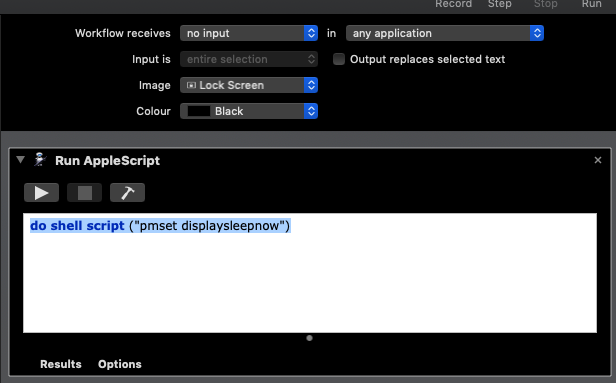
I finally solved it by creating an AppleScript in Automator as a service with the following code.
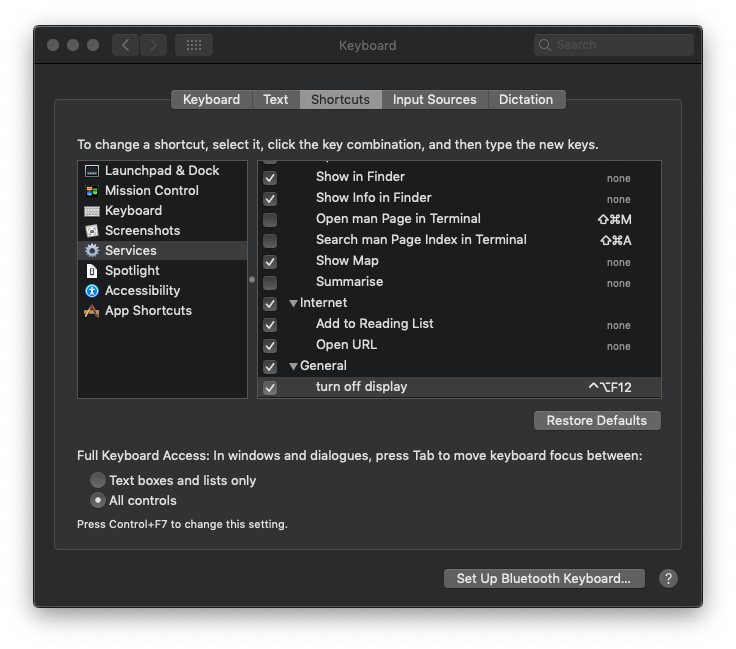
do shell script ("pmset displaysleepnow")As we've created a new service, we can assign a shortcut from System Preferences > Keyboard > Shortcuts > Services,
in my case, I've assigned Control (^) + Alt + F12 as you can see in the image.
I hope this helps someone, and if you solved this in another way, please let me know :)